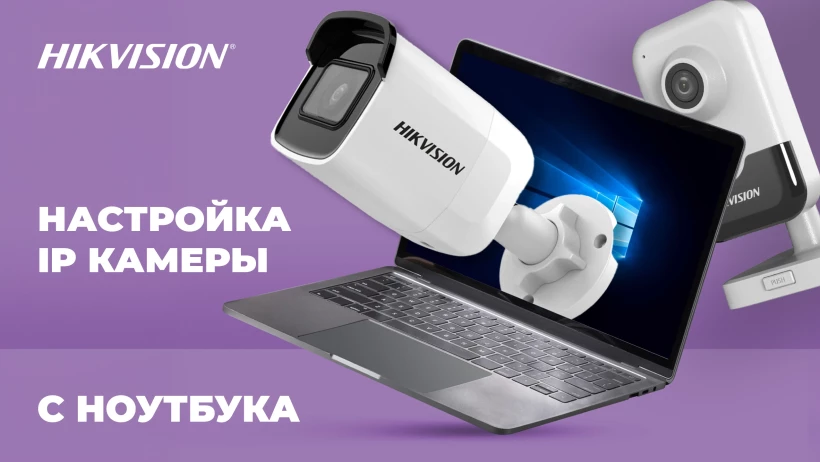
How to set up an IP camera and IP video recorder Hikvision
Home ➤ Knowledge base ➤ 26.06.2024
Как настроить IP камеру и IP видеорегистратор Hikvision
Home ➤ Knowledge base ➤ 26.06.2024
Как настроить IP камеру и IP видеорегистратор Hikvision
First of all, after supplying power to the IP camera or NVR, if the device has not been used before, it must be activated. There are several ways to activate the device:
During the activation process, you will be prompted to create and confirm a password for accessing the device interface. Make sure to remember it and store it in a safe place — the password reset process, if it is lost, can take some time.
Adding IP cameras to the recorder
Before adding cameras, you need to ensure that their IP addresses are in the same subnet as the NVR’s IP address. You can change the IP addresses of the cameras using the SADP tool.
Cameras can be added to the recorder either automatically, with a single click, or manually. For more details, see the video.
Several ways to activate an IP camera and add it to the recorder via the recorder’s on-screen interface
After activating the device and adding it to the NVR, you can already view the cameras through a video monitor connected to the recorder. The cameras are set to factory image settings by default. If you want to adjust the camera image to real conditions, it is most convenient to use the IP camera’s web interface.
To access the camera via the web interface, it is recommended to use the Internet Explorer browser. First, you need to install the plugin and configure ActiveX. Then, access the IP camera interface through Internet Explorer by entering the camera’s IP address in the address bar (you can find and change it using the SADP utility).
Plugin installation and disabling ActiveX filtering
After the camera image appears in the browser window, you can start adjusting the settings. As with most IP cameras, Hikvision cameras allow you to change brightness, contrast, noise reduction modes, motion detection zones and sensitivity, and much more. Let’s take a look at some interesting features specific to Hikvision cameras.
Configuring exposure switching and enabling WDR by schedule
Hikvision IP cameras have two day/night switching modes:
As in other IP cameras, Hikvision cameras and video recorders include a standard motion detection feature. However, in addition to this, there are several smart detection functions that make event-based recording more efficient and help avoid false alarms. In the video, smart detection was configured via the web interface of the DS-7108NI-E1/V/W IP video recorder.
Configuring exposure switching and enabling WDR by schedule. Recording based on intrusion into a zone and crossing a virtual line.
Video surveillance for home || Video surveillance for apartment || CCTV camera installation in Tashkent || CCTV camera installation in Tashkent with warranty || Video surveillance in Tashkent || CCTV installation and maintenance services || HIKVISION CCTV camera installation || CCTV camera монтаж in Tashkent || Installation of video surveillance systems and cameras in Tashkent
Tashkent city, Shaykhantakhur district, Kukcha Darvoza street, 10

PE "NET FEAT MOBILE" All rights reserved. SYNERGO – Installation and maintenance of security, automation, and communication systems in Tashkent.